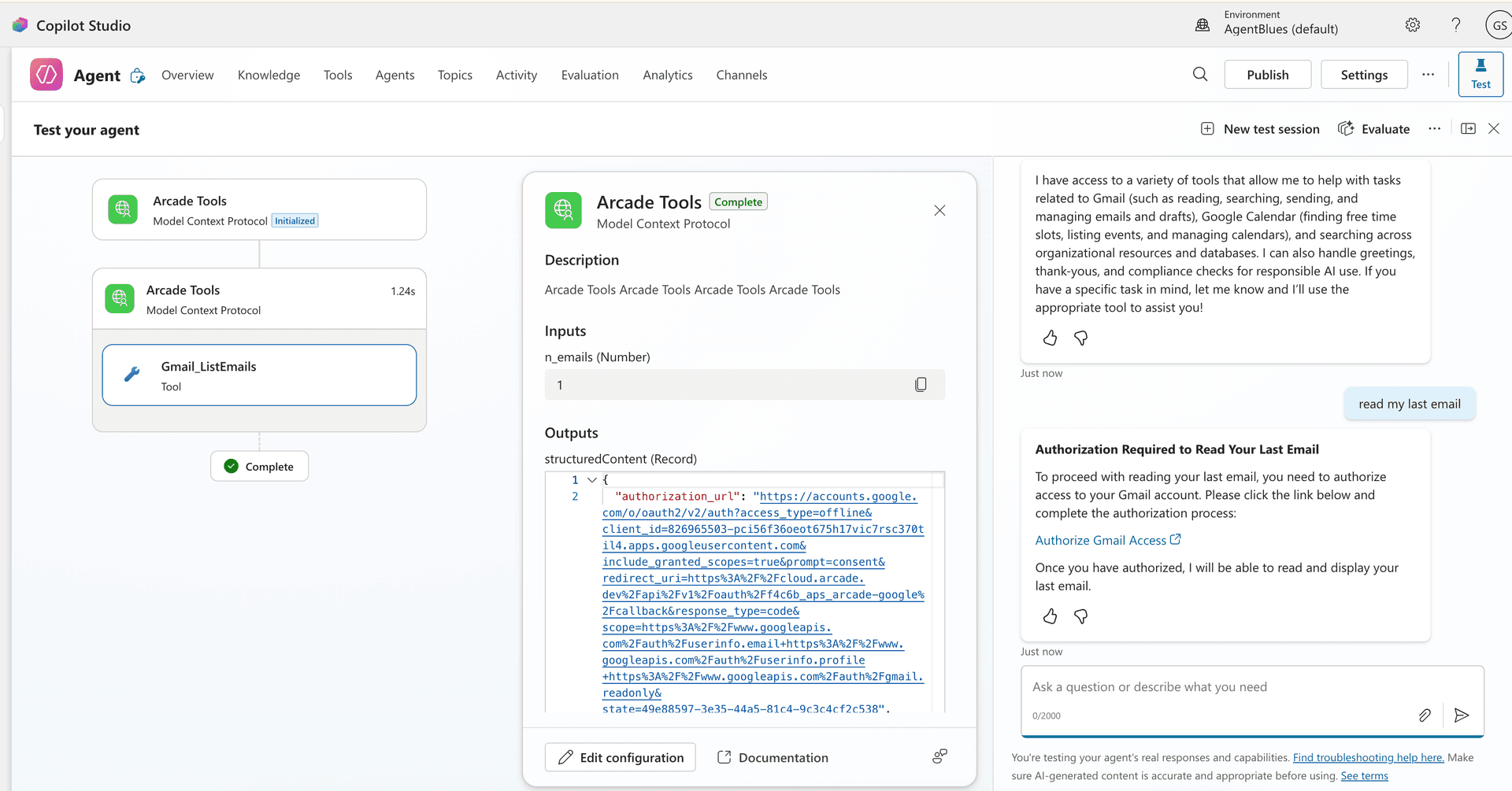
Use Arcade in Microsoft Copilot Studio
Outcomes
Connect Microsoft Copilot Studio to an Arcade Gateway.
Prerequisites
- A Microsoft 365 subscription with access to Copilot Studio
- Create an Arcade
- Get an Arcade API key
- Create an Arcade MCP Gateway and select the you want to use
Production end with their own identities? If your end users already sign in to Entra ID, Okta, Auth0, Clerk, or another OIDC provider, configure a User Source on your gateway. Arcade redirects each end user to your identity provider on sign-in and identifies them by an OIDC subject claim.
Create or open your agent
In Copilot Studio , create a new or open an existing one that you want to connect to Arcade .
Add a new MCP tool
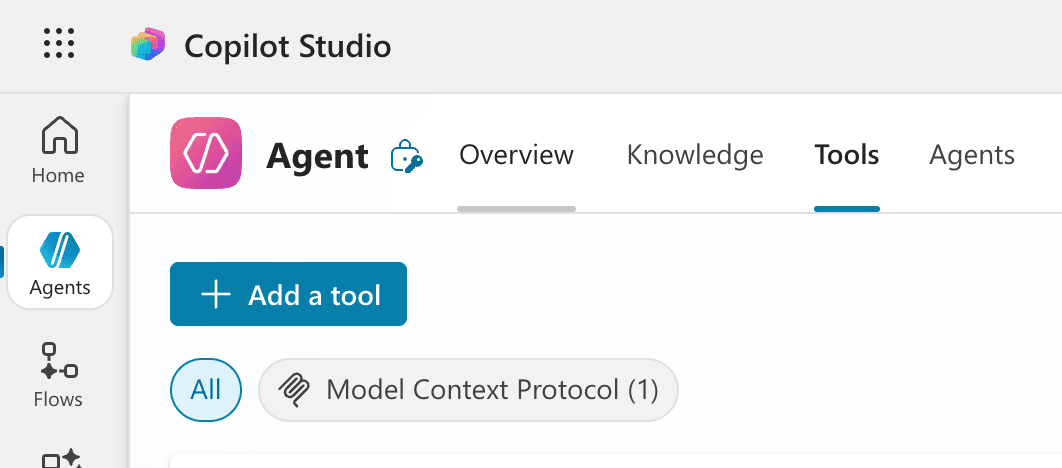
- On your ’s page, select Add a tool
- Select New
- Select
Configure the MCP Gateway connection
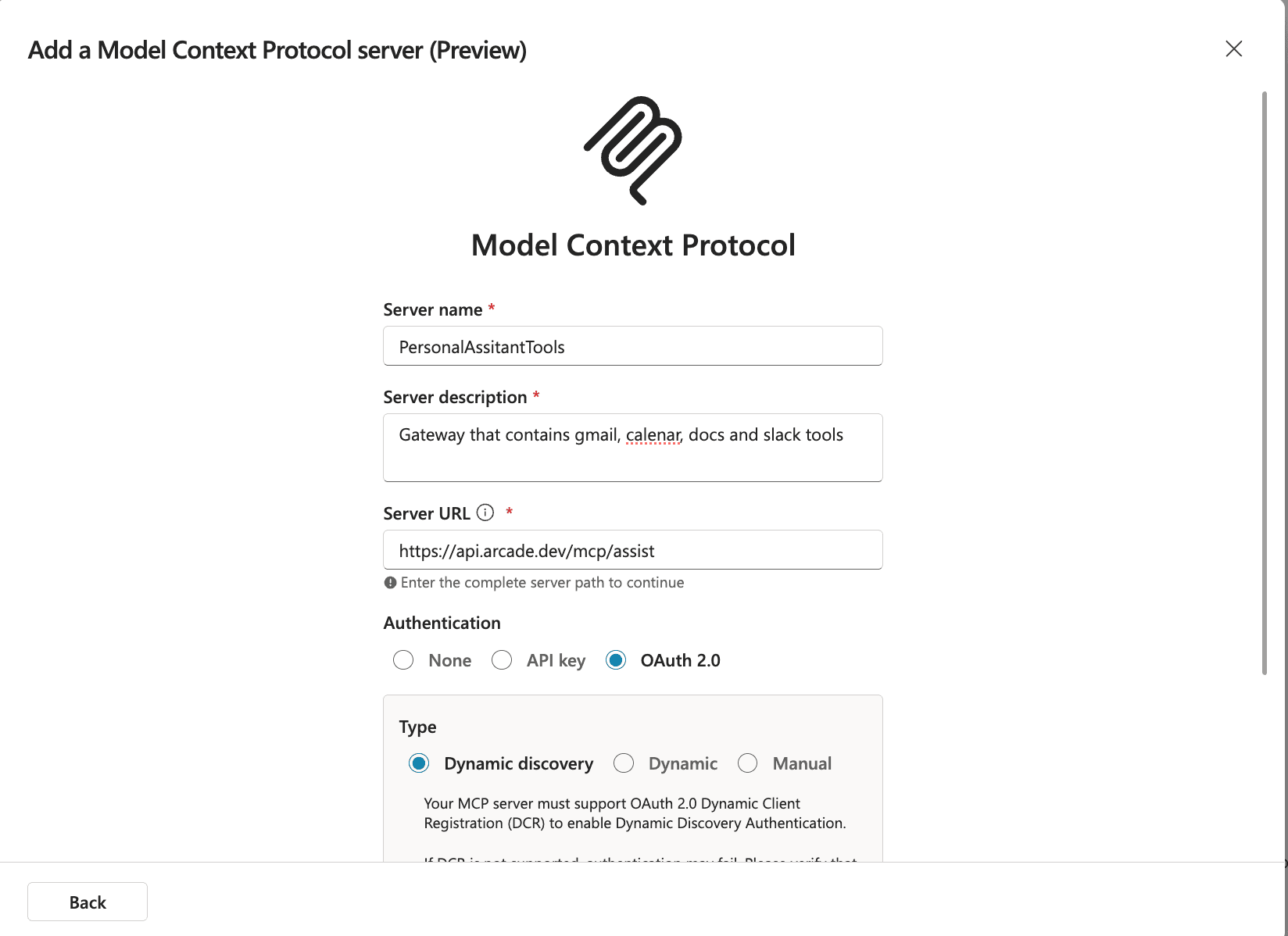
In the configuration dialog:
- Enter a Server name for your connection (for example, “PersonalAssistantTools”)
- Add a Server description to help identify the available
- Enter your Arcade Gateway URL in the Server URL field:
https://api.arcade.dev/mcp/<YOUR-GATEWAY-SLUG> - Under Authentication, select OAuth 2.0
- Under Type, select Dynamic discovery
- Select Create, then Next, and create the connection when Copilot Studio asks
Complete the authorization flow
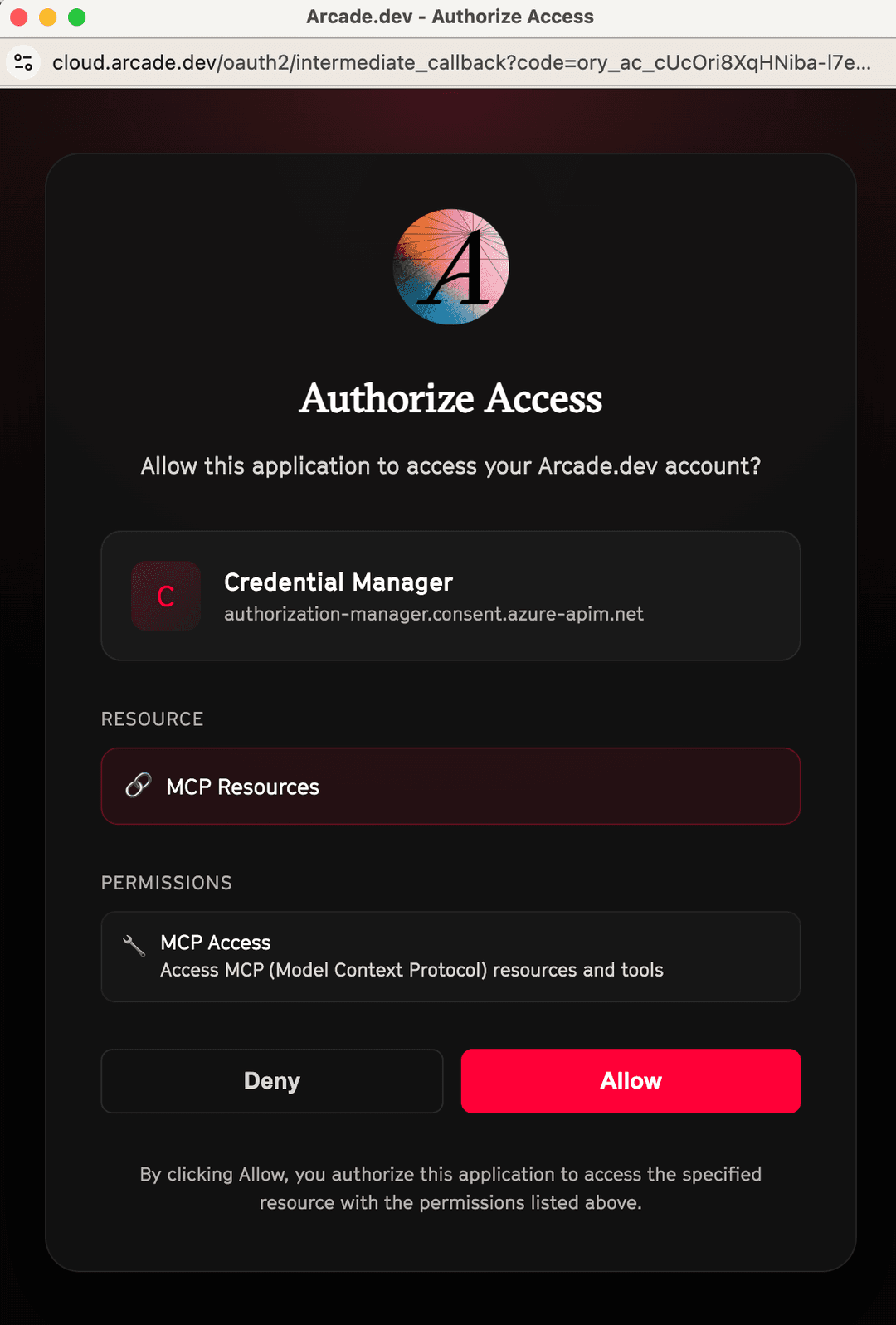
Arcade opens an authorization page. Review the permissions and select Allow.
Start using your tools
Once the connection is established, return to your and start a conversation. Now you can directly interact with your .
Arcade provides just-in-time authorization. When you use a that requires access to an external service, Copilot Studio will display an authorization link. Click the link to grant access and continue. This works seamlessly with tools like SharePoint, Teams, Stripe, and Gmail.